

I love that reading is free, you can do it anywhere. You can do it on the train… uh, don’t do it while you’re driving
– James Pumphrey
When I was younger I used to avidly enjoy reading in my free time. From adventures in a galaxy far, far away (shoutout Karen Traviss), to the neo-Greek mythology of the Percy Jackson series, I tore through books like it was my job. However, as I’ve gotten older that’s no longer the case. Between work and school, most of my reading now consists of dry technical manuals, textbooks, and reviews for whatever power tool I want to buy next.
So the goal of this project is to make whatever book I’m reading:
- Easily accessible
- Simple to pick up right where I left off
- Replaceable when I’m ready to crack open the next one
Join me as we Make Reading Great Again so I have no excuse not to be well-read.

Picking a Platform
Obviously, the first thing I could do to achieve this goal would be to open up my wallet and head to the nearest app store to get an e-reader service like Bezos’s Kindle or Google’s Shelf and start building a digital library that I don’t really own. But the easy way has some huge red flags. For example, say they lose the licensing or worse, 1984 comes to pass and certain books get banned and poof, there goes my book and my money.
Also, if you’ve read any of my posts so far you’re probably aware that I’m definitely a DIY kind of guy, and like with most things I’m going to do it myself.
So what are the options for self-hosting this kind of service? As you can tell from the title, I went with Kavita for its multi-user support, anywhere access, and mainly because I liked the UI the most. But there are other great options I stumbled upon that might suit your needs better:
- Calibre for its wider format support and plugins.
- Komga if your main focus is comics and manga.
- Polar Bookshelf if you just want to install a Snap package and enjoy books locally.
The Set Up
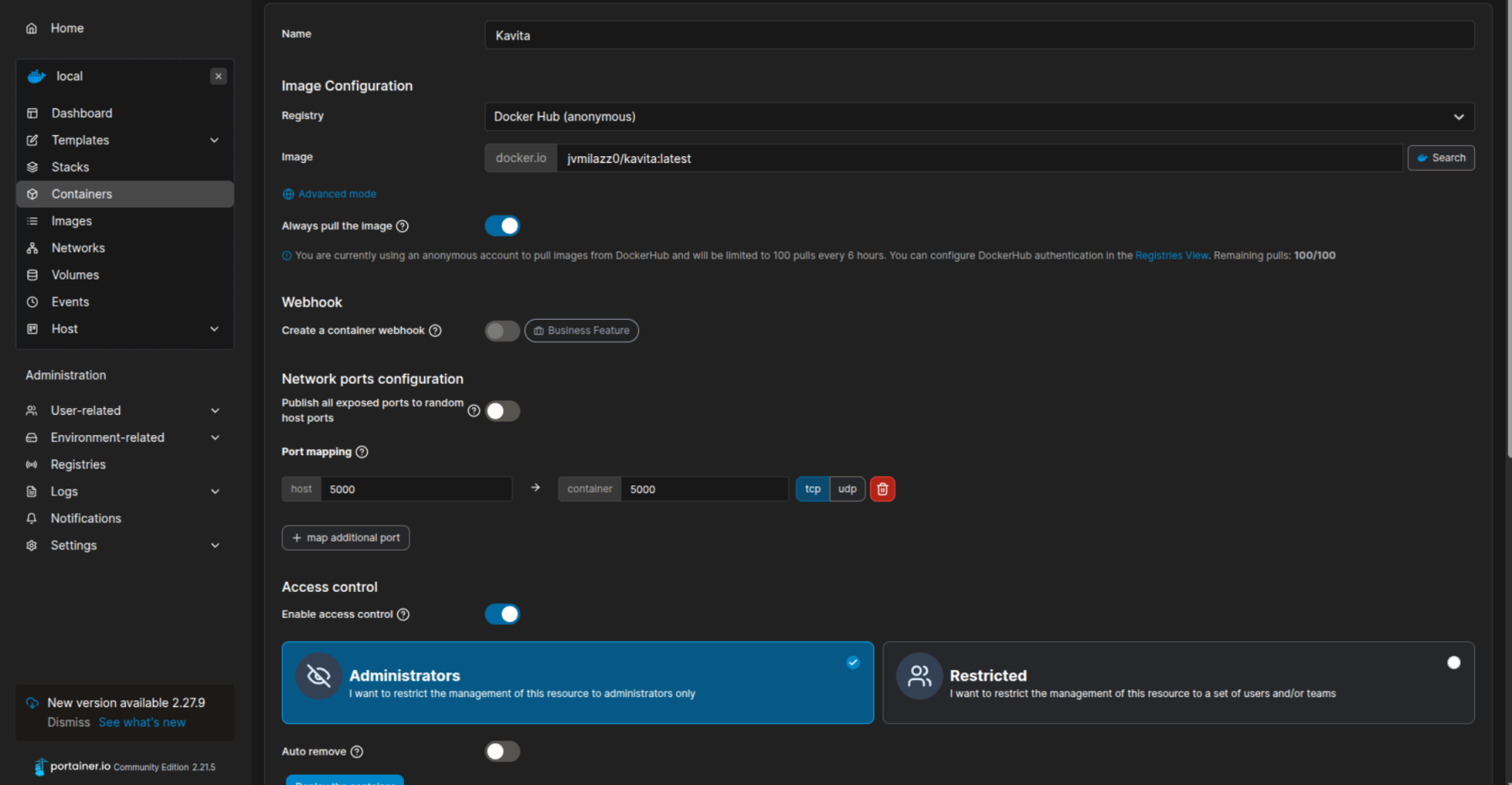
For this setup I’ll be using Kavita’s Docker image. There are plenty of ways to set it up, but for that I’ll refer you to their instructional page here: https://wiki.kavitareader.com/getting-started/.
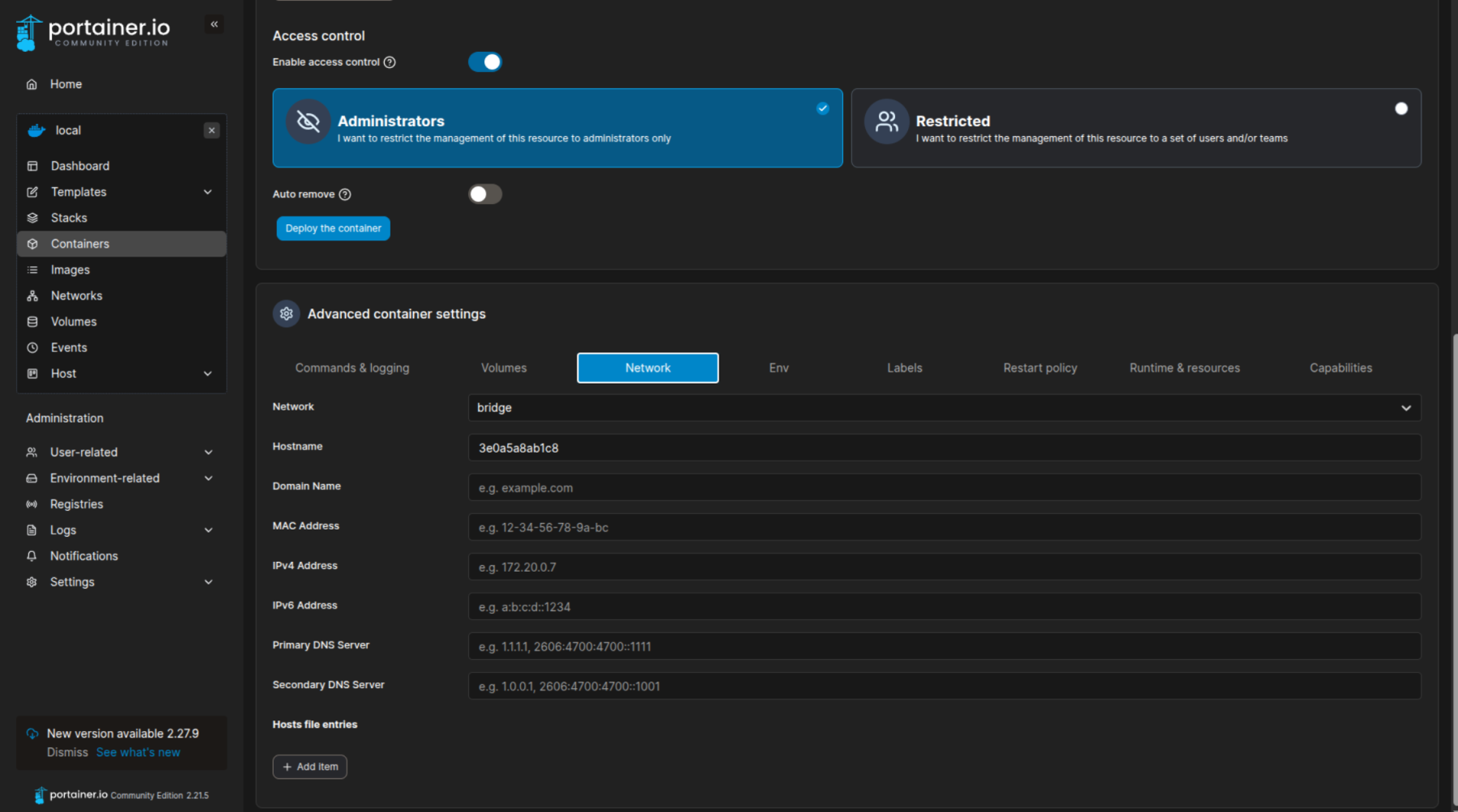
I like using Portainer to set up and manage my Docker containers since it’s simple and easy. Remember to create your volume first, set your port mapping to 5000, and set the network adapter to bridge before pulling and creating the container.
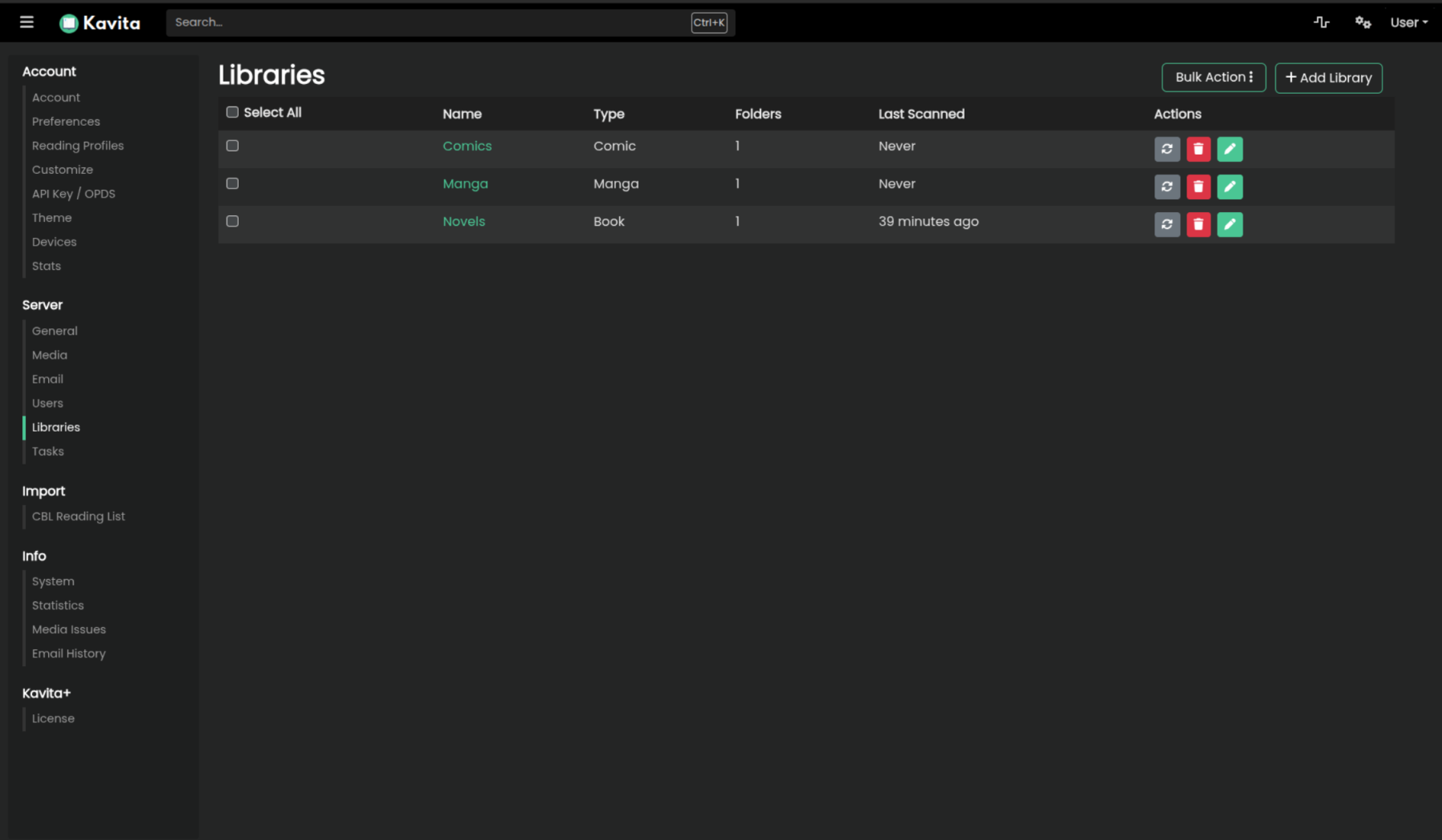
Once it’s up and running you’re good to go to http://your-server-ip:5000, and you should be greeted with a simple sign-in screen to create your admin account. After you create your account and log in, the last thing is to load up something to read and create your libraries. Kavita supports formats like PDF, EPUB, and a variety of comic/manga formats.
To make this all work you’ll need to create a folder and place each file in that folder. For example, my copy of Pride and Prejudice from epubbooks.com is mounted like this:
/storage/books/'Pride and Prejudice (Illustrated)'/austen-pride-and-prejudice-illustrations.epub
Now that you have your books loaded up, create a library by clicking on the gear icon in the top left, navigating to the Libraries tab under Server, and clicking on the Add Library button. In the popup, give it a name and point it to the folder you mounted with your media. I decided to split my libraries into books, comics, and manga.
Mr. Worldwide
You can stop here if you only want access to your e-library locally, but I decided to take it a step further. To access the library securely from anywhere in the world, I created a domain name with NO-IP, used Certbot to generate some SSL certificates, and created and enabled my .conf file.
That’s right, eriks-library (e-library for short) can now be accessed anywhere with an internet connection.
If you want to do this too, there are more detailed instructions in Kavita’s setup guide I linked earlier. Or if you’re using Apache2, you can copy, edit, and enable the slightly trimmed-down config file I made for the reverse proxy:
<IfModule mod_ssl.c>
<VirtualHost *:443>
    ServerName your.domain.com

    SSLEngine on
    SSLProxyEngine on
    SSLProxyCheckPeerCN off
    SSLProxyCheckPeerName off
    SSLProxyCheckPeerExpire off

    # Use Let's Encrypt certificate paths
    SSLCertificateFile /etc/letsencrypt/live/your.domain.com/fullchain.pem
    SSLCertificateKeyFile /etc/letsencrypt/live/your.domain.com/privkey.pem

    ErrorLog ${APACHE_LOG_DIR}/proxy-error.log
    CustomLog ${APACHE_LOG_DIR}/proxy-access.log combined

    ProxyPass / http://SERVER_IP_ADDR:5000/
    ProxyPassReverse / http://SERVER_IP_ADDR:5000/

    ProxyPreserveHost On
    ProxyRequests Off

    # WebSocket support
    RewriteEngine On
    RewriteCond %{HTTP:UPGRADE} ^.*WebSocket.*$ [NC]
    RewriteCond %{HTTP:CONNECTION} ^.*Upgrade.*$ [NC]
    RewriteRule .* ws://SERVER_IP_ADDR:5000%{REQUEST_URI} [P]

    RequestHeader set X-Forwarded-Proto "https"
    RequestHeader set X-Forwarded-Port "443"
    RequestHeader set X-Forwarded-For "%{REMOTE_ADDR}e"
</VirtualHost>
</IfModule>
On the Go
The last step was figuring out how I’m going to access and enjoy my library from my phone. Currently, there’s only a third-party app called Kavita Blue, but when I tried it, it kept freezing and ruined the UI I like. So I just opened up Chrome on my phone, navigated to my domain, and set it up as a web app on my home screen. Sure, I could have paid for a Kindle subscription, but where’s the fun in that? Besides, now I get to say my library runs on Docker and that sounds way cooler at parties anyways.